

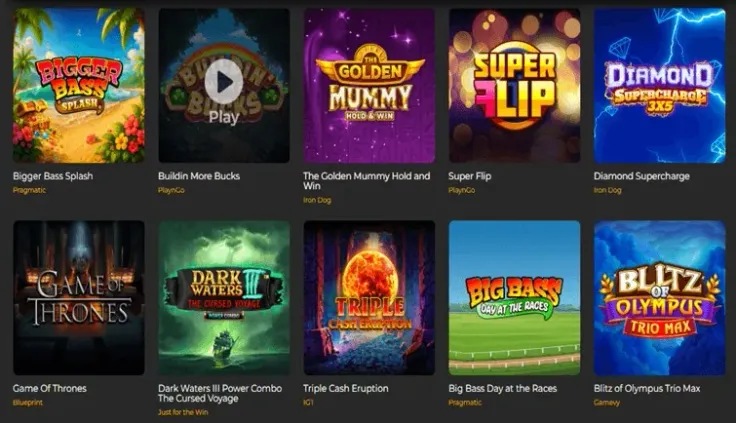
The Grand Ivy mobile play is covered three ways: there is an iPhone app, an Android app and a mobile site that runs in your phone's browser. You do not have to choose one for good, because the mobile site is always there if you would rather not install anything. This page explains what to expect on a phone and how to keep your account secure, while the table above shows which options exist.
What you can do on a phone
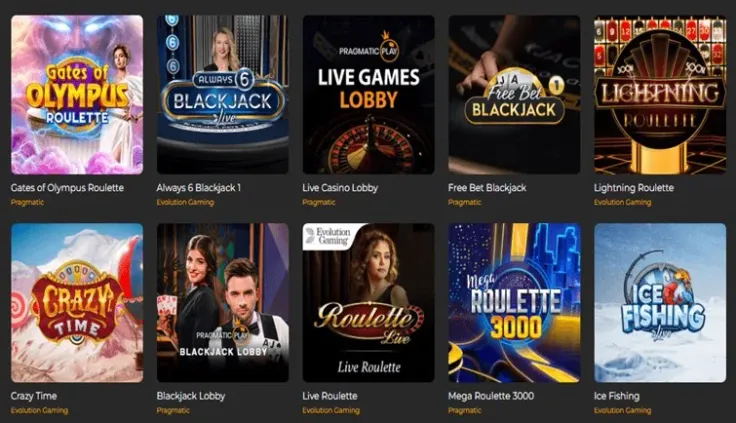
The mobile site is the same casino in a screen-sized layout. You open your browser, go to the The Grand Ivy website and log in, or register if you are new. If you do not have an account yet, the sign-up guide explains what registration involves, and returning players can go straight to logging in.
The main difference from a computer is how you interact. You tap instead of click, you scroll with a thumb, and a small screen shows less at once. That affects reading as much as playing. Long terms, payment details and game information are easier to read carefully on a larger screen, so if you are about to agree to something that has conditions attached, take the time to read it properly rather than skimming on the move. Offer conditions are laid out on the welcome bonus page, and T&Cs apply.
Phones also make it very easy to play in short bursts at any moment, which is part of their appeal and part of the risk. The same casino account sits in your pocket all day. Decide beforehand how long you want a session to last, and use the account's own control tools, such as deposit limits and time-outs, instead of relying on remembering to stop.
Games, cashier and account pages are the ones you will use most often. Rather than guess at how the phone layout arranges them, open the site once on your own device and look around before you deposit.
Browser, home screen or app

If you prefer not to install anything, the browser route needs nothing more than a mobile browser. The steps above show how to open the site, log in and add it to your home screen. A home screen shortcut gives you one-tap access in the same way an app icon does, but it is still the website, opened in your browser.
If you want a native app, The Grand Ivy has one for both platforms. On an iPhone, search for the app in the App Store on your own device. On an Android phone, use your phone's app store in the same way. Check that the app comes from The Grand Ivy, and read what the listing says about the publisher before you install.
Never install a casino app from a link in a message, a pop-up, a file shared by a stranger or any source you do not recognise. A genuine app does not need you to change your phone's security settings to allow files from unknown places. If something asks you to do that, close it and use the browser instead. Buttons on this site that lead to The Grand Ivy go through visit The Grand Ivy, and they open the casino's own pages, never a file download.
The platform pages go into more detail: the iPhone app page covers Apple devices and the Android app page covers Android phones.
Keeping your account safe on a phone

Your phone is now the key to your casino account, so protect it first. Use a passcode, fingerprint or face unlock, and set the screen to lock quickly. If someone else picks up your phone, they should not be able to open the casino.
Do not share the device while you are logged in, and do not let your browser save a password on a phone that other people use. Log out if the phone is lent, repaired or sold.
Mobile data and Wi-Fi both work. Games need a steady connection, so check what your data plan allows before a long session, as any extra charges are yours. If a connection drops during a game, wait for it to return and check your balance and history before doing anything else.
Set your limits at the start rather than in the middle of a session. Deposit limits, time-outs and self-exclusion are available to every player at a UK-licensed casino, and GAMSTOP covers all of them at once if you decide you need a break. Your phone also has its own tools: you can set screen-time limits or turn off notifications from gambling apps, which makes it harder to drift into a session you did not plan.
Finally, keep the phone's software up to date. Security updates close gaps that criminals look for, and a protected phone protects the account on it.